
Tag: Green Room

  • How to: Edit About Me

    The Stylist About Me page on your jhilburn.com PURL was updated as of 5/22/18.

    FirstNameLastName.jhilburn.com/aboutme/YourStylistID


    ABOUT ME PARAGRAPH

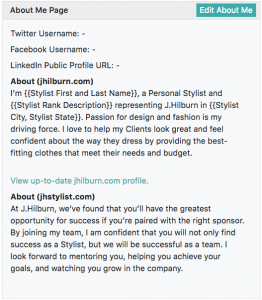
    The page contains a paragraph that you can edit in the Green Room mixed with static paragraphs that you cannot edit that explain the J.Hilburn Stylist Experience. 

    The first paragraph you can edit by going to:

    Green Room>My Account>About Me page section

    Click “Edit About Me”. You can also add in your social media usernames which will display as icons on your About Me page.

    From here you’ll be able to edit the paragraph for your jhilburn.com About Me section and the jhstylist.com About Me section (jhstylist.com About Me was updated in Fall 2017 and is located on the Featured Stylist section of your recruiting PURL).

    We suggest tailoring your About Me to show your personality behind your business. Some ideas to include in this section:

    • Information about your previous work history and/or J.Hilburn milestones

    • Passion for J.Hilburn and why you love your business

    • The level of service you provide that sets you apart

    • A call-out for recruiting others to join J.Hilburn

    If you do not have anything written, these sections will populate with the following scripts:

    jhilburn.com

    I’m {{Stylist First and Last Name}}, a Personal Stylist and {{Stylist Rank Description}} representing J.Hilburn in {{Stylist City, Stylist State}}. Passion for design and fashion is my driving force. I love to help my Clients look great and feel confident about the way they dress by providing the best-fitting clothes that meet their needs and budget.

    jhstylist.com

    At J.Hilburn, we’ve found that you’ll have the greatest opportunity for success if you’re paired with the right mentor. By joining my team, I am confident that you will not only find success as a Stylist, but we will be successful as a team. I look forward to mentoring you, helping you achieve your goals, and watching you grow in the company.

    ACCOUNT PHOTO

    The  jhilburn.com About Me page also features a photo of you that pulls from the Green Room. In addition, this photo is used in the footer of Client Marketing Emails sent on your behalf to your Clients as well as for recognition graphics.

    If you choose to not provide a photo, the gold J.Hilburn monogram on a black background with populate in its place.

    To add or change this photo:

    Green Room>My Account>Change picture

    Click “Change Picture” to upload a photo.

    Screen Shot 2018-05-09 at 2.40.03 PM

    Face Recognition Technology:

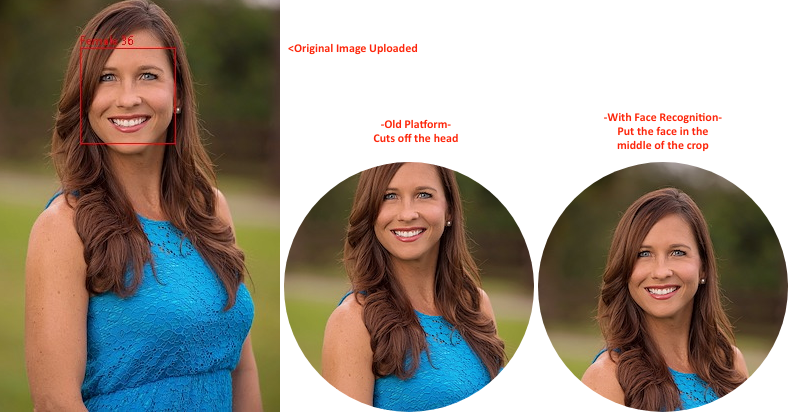
    A Face Recognition platform aids in the image display. This technology will identify a face in a photo and make sure it is cropped to the desired brand-right ratio.

    Example:

    Some tips for choosing an Account Photo:

    • Choose a recent photo
    • The best crop for a photo is from the top of your shoulders to just above your head so that your face fills the frame. We recommend a photo that is at least 480×480 pixels in size.
    • Make sure the background of the photo is free of distractions and is professional representation of you.

    Bad Account Photo Examples:

    Sunglasses

    While you may looking stylin’ in your shades, you can’t see your face!

    Blurry

    When the resolution is poor in your photo, it’s hard to see you!
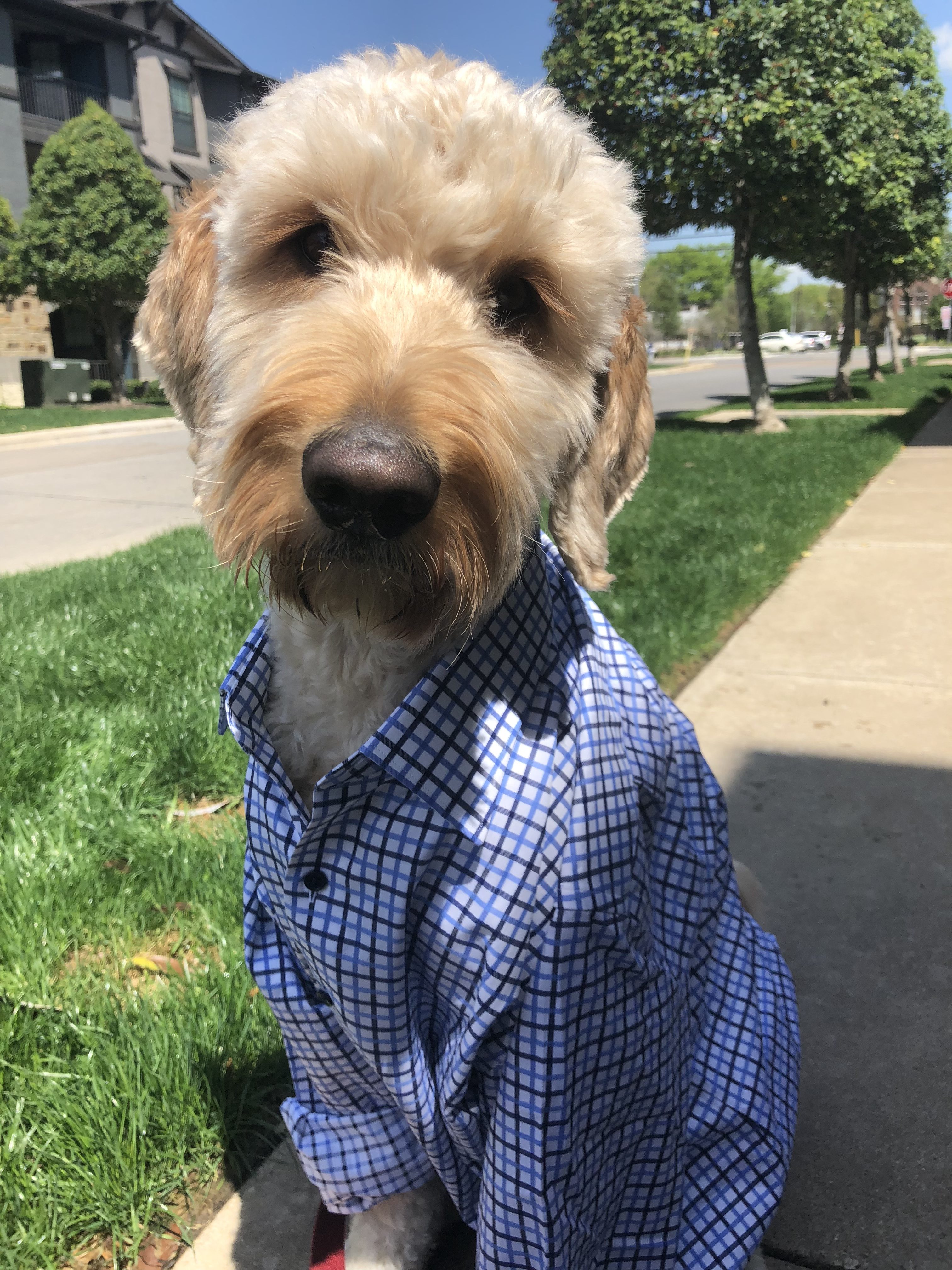
    Who is that?

    Puppies and kids are super cute – but upload a photo of yourself! It’s your business afterall. This also goes for other logos or landscape photos. Keep the focus on you!
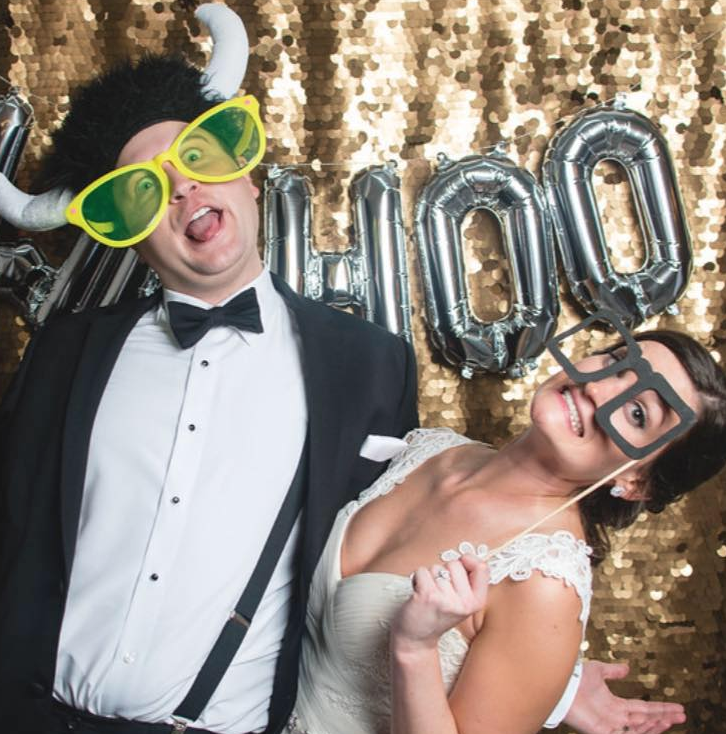
    Wacky Photo

    Your personality is one of the reasons your Clients shop with you – but make sure your picture is a professional representation of yourself.
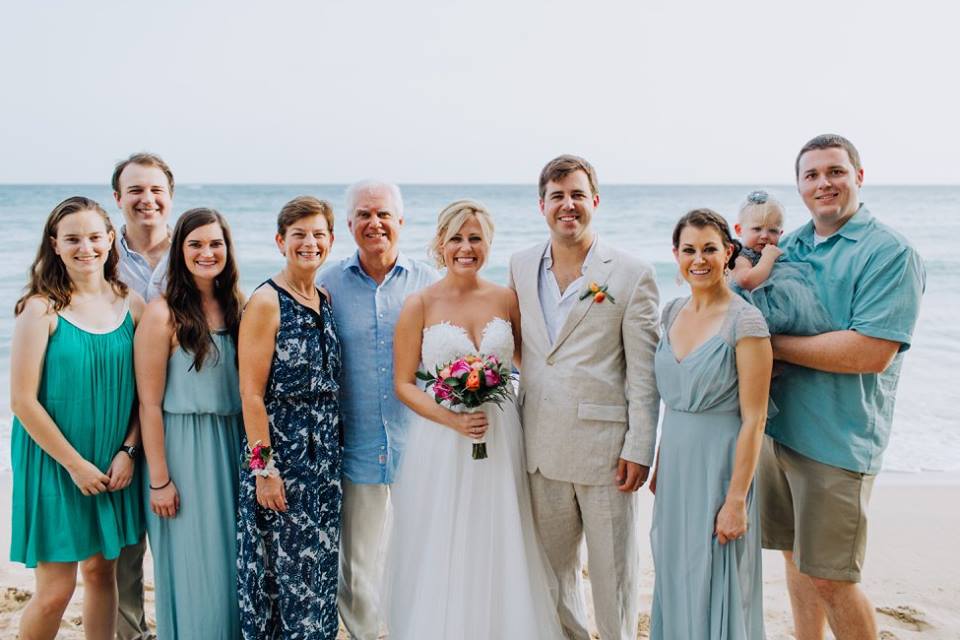
    Who’s the Stylist?

    When you upload a picture with multiple people, the face recognition software may not locate your face! Keep it to just you in the image.

    Outfit Choice

    Sleeveless tops could make for an awkward crop.
    ACCESS ABOUT ME PAGE

    Audiences access your page by:

    1. Scrolling to the bottom of your PURL in the footer
    2. If they are logged into their account on your PURL, click through from their “Little Man” icon
    3. You directly send them the link:

    FirstNameLastName.jhilburn.com/aboutme/YourStylistID

    We are continuely looking for ways to incorporate this page from other access points on your PURL.

    HOW TO LEVERAGE THE ABOUT ME PAGE

    Post the link on your social media to drive up conversations and business. 

    Use this page as a follow-up to meeting a Potential Client in person – allowing him to learn more about you and the J.Hilburn Stylist Experience.

    Share it as a virtual business card.

  • How to: Use Invitations

    A new tool has been added to your Green Room that allows you to easily download personalized, brand-approved invitations for Client and team events.

    Images featured in this tool are Essentials, Golf, and Formal Wear. We will monitor the usage of this tool, and, if demand is high, we will add more images in the future. If you have suggestions on what images to add or how to make this tool better, please use the Feedback Button in the upper right-hand corner of the Green Room.

    (more…)

  • Alteration Reimbursement Policy

    Looking to have a Client’s order altered by a tailor?

     A few things to keep in mind: 

    1. We are able to reimburse up to our maximum amount per product category (shown below) with a valid receipt within 90 days of the ship date. 

    2. If you think that an item in your Client’s order may have been produced incorrectly, please reach out to Fit Advice before altering. We will not be able to to reimburse for alterations above our maximums unless confirmed as being produced incorrectly by Fit Advice. 

    3. Each Client has a Maximum Total Reimbursement amount per clothing category, per Client Lifetime. Here are the maximums:

    • Shirt: $50
    • Trouser: $75
    • Jacket: $100
    • Polo: $50
    • Casual Bottom: $75
    • Outerwear: $100
    • Denim: $20 per item

    Below is a list of alterations that we can match at the factory on a future order. We highly encourage you to only alter within the below options in order to ensure that you can order an item that fits the same way on a future order.

    Custom Sportcoats

    • Waist/hip alteration of 1” or 2” total
    • Lengthening or shortening the sleeves in 0.25” increments
    • Neck roll reduced by 0.25”
    • Shortening the Sportcoat length 1″

    Custom Trousers & Casual Bottoms

    • Increasing or decreasing the waist in 1” increments
    • Increasing or decreasing the hip in 1” increments
    • Hemming the outseam in increments of 0.5”
    • Taper the knee-to-leg opening 1” or 2”

    Custom Shirting

    While we can replicate the majority of alterations, here is a list of adjustments we cannot offer at the factory level at this time: 

    • Adding a snap button to the collar
    • Pocket placement other than our factory specification
    • Monogram added at locally

    Custom Outerwear

    • Waist/hip alteration of 1” or 2” total
    • Lengthening or shortening the sleeves in 0.25” increments for Top and Car coats

    Custom Knits

    • Shortening the Length of the MTM
    • Shortening the Sleeve Inseam within the range offered for the MTM chest size

    RTW Denim

    • Because our denim is Ready-To-Wear, we are only able to reimburse for altering the hem. 

    We want to ensure that the changes you are making can be re-created for your Client’s future orders. Some Clients will require further alterations that we cannot offer at the factories.  We strive to provide the best experience with clothing while maintaining our affordable price points. If you ever have any questions regarding alterations, please reach out to fitadvice@jhilburn.com!

    *Updated 8/13/2018

  • How To: Track Orders

    We know it’s important for you to know when your Clients’ orders will arrive, so that you can set expectations with your Clients and schedule those Delivery Appointments!

    We’ve made it simple to track what items have shipped.

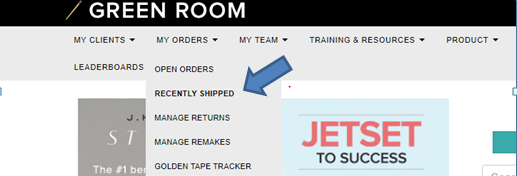
    Once you log into the Green Room, go to the “My Orders” tab, then select “Recently Shipped” from the drop down menu.

  • How To: Set up your J.Hilburn Email Account on a Mobile Device

    Are you setting up your J.Hilburn email account on your phone, tablet, or another mail application? Follow these simple steps!

    1. Please follow this Email Set-Up Wizard to help setup your email and better manage your account.
    2. Log in using your Green Room Login credentials – your J.Hilburn email address and password.
    3. Click “Set Up My Email”.
    4. Click on the device you would like to set up, either computer/phone/tablet/other.

    If you still have questions regarding setting up your J.Hilburn email account, please contact stylistcare@jhilburn.com.