This Green Room Reference Guide will show you how to pull a list of your clients and filter clients that HAVE UNSUBSCRIBED FROM HOME OFFICE EMAIL MARKETING.
This is an important list for you to pull monthly to ensure you have the most updated client information as you reach out. Unsubscribed Clients should be the first segment of clients you reach out to. They are only receiving communication from you. Therefore, making these Clients, a priority will be lucrative for you.
In creating this list, you will have a “call list” you can use as a hook to activate clients, sales, appointments, etc. Having this list gives you a great starting point each month to ensure your Unsubscribed Clients take priority and are being serviced along with generating revenue for you and your business.
Please follow the steps below to download and filter your Unsubscribed Clients in the Green Room.
Let’s dig in…
1. Login into your Green Room and click My Clients > All Clients.
2. You will see a button that says “download” click this button, and your complete list of clients will be downloaded to your downloads folder.
3. Open the spreadsheet file. NOTE: this Reference Guide shows how to filter Unsubscribed Clients via Microsoft Excel.
4. Delete any columns A-V of data that you might not need to clean up your spreadsheet. NOTE: don’t delete the “Unsubscribed” column. You will need this column of data in a moment.
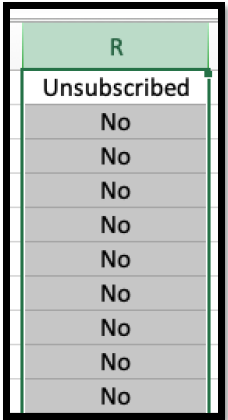
5. Find the “Unsubscribed” column and click the letter above to select the entire column. Click “R” to select the “Unsubscribed” column in this example. See below.
6. Once you have the entire “Unsubscribed” column selected, it’s time to filter out all the “No” clients, as these clients have currently opted into our marketing emails. You want all the clients with “Yes” listed as these clients are Unsubscribed.
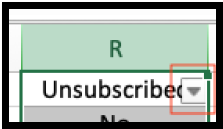
7. With the column still selected, find “data” at the top of your Excel window. Click “data” then “filter.” Once you follow these steps, you will see a box appear that you can select.
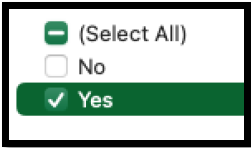
8. When you open the box selector, you will see filter options. Deselect all but the “Yes” section. You will filter all the clients who are subscribed to our email marketing (No), leaving only the Unsubscribed Clients (Yes). This is the data you are looking for.
9. Make sure all the clients in your column as Unsubscribed = Yes. You now have a tailored list of only your Unsubscribed Clients.
10. You have two options from here 1. Save your spreadsheet as is to keep your Unsubscribed Clients or 2. Copy all the information from your Unsubscribed Clients, paste it into a new Excel spreadsheet, and then save.