It’s likely that you’ve unsubscribed from our Corporate Update emails.
To begin receiving these emails again, you’ll need to resubscribe. Please follow the steps below.
1. Go to your J.Hilburn Inbox via the Green Room, and find the last email you received. Try searching for messages from marketing@jhilburn.com or communications@jhilburn.com. A Weekly Update, Spotlight, or Marketing Message of the Week should do the trick!
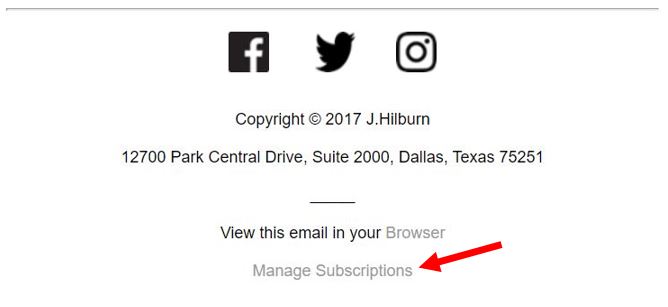
2. Once you have opened the email, scroll down to the bottom. At the bottom of every Stylist Communication, you have the option to manage your subscription settings. Click the “Manage Subscriptions” link.
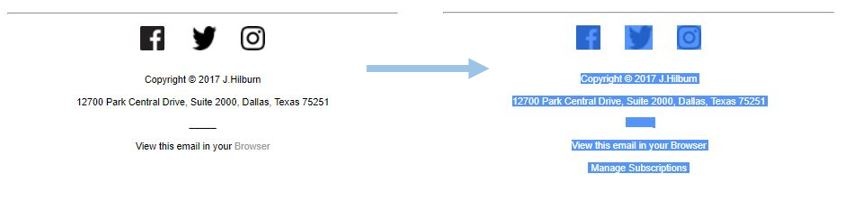
Not seeing the link? Try highlighting the footer with your cursor.
3. The “Manage Subscriptions” link will take you to a new page where you can resubscribe by updating your Communications Preferences. Make sure the “Unsubscribe” button is unchecked, and click “YES, RESUBSCRIBE ME!”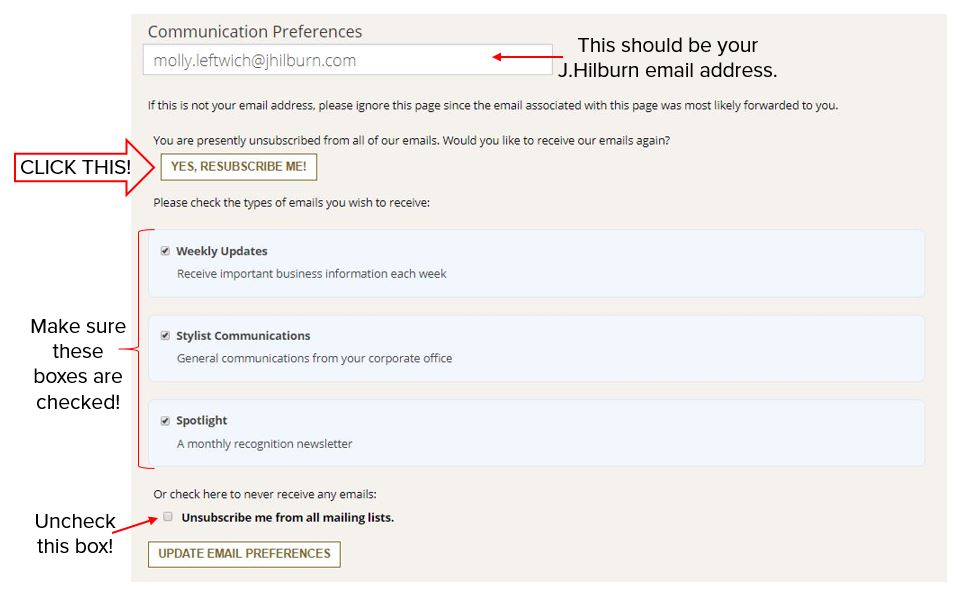
4. Once you’ve resubscribed, you’ll be taken to a confirmation page where you will see this message:

You’ve now resubscribed to Stylist Communications!