
Step-by-step instructions on how to download from the Dropbox resource.
These are instructions for iOS (Apple) devices as of Nov 2017 because the majority of Stylists use iPhones or iPads to download images. Models and iOS system upgrades may vary.
If you have an Android device, you should be able to tap on the file/image/video and easily download from the prompts on your phone. Please refer to your device’s owner’s manual or carrier’s support team for further information.
Download Instructions
Instructions can also be used for both images and video.
- Download the Dropbox app from the App Store (it’s free!). Create a login if you don’t already have one.
- Click the download link provided to you from the Marketing Team. Your Dropbox app will open automatically; or you will be prompted through your browser to open the file in your Dropbox app (open it through the app).
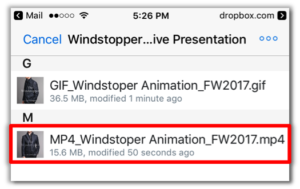
- Tap the file you’re wanting to use.
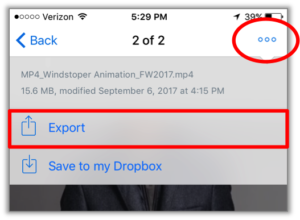
- Click on the ellipsis in the upper-right-hand corner. Then click “Export.”
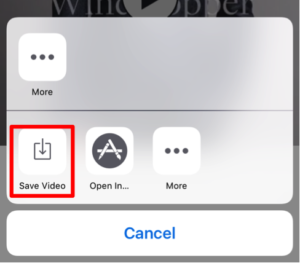
- Click on “Save Video” or “Save Photo” which will download the file to your Videos/Camera Roll on your device. You will now be able to upload your file to your chosen platform as you normally would.
A Few Notes
- Instagram will only allow for .mp4 and .jpeg file types to be uploaded.
- Facebook, LinkedIn, emailing, and texting allow for .mp4, .jpeg, and .gif files types.