Repository for out of date content
This Green Room Reference Guide will show you the best way to see all the CLIENTS THAT PURCHASED FROM YOU IN THE SPRING 2021 SEASON.
There are many ways you can see which clients purchased from you in a specific period, BUT we have chosen the fastest and most efficient way to see CLIENTS THAT PURCHASED FROM YOU IN THE SPRING 2021 SEASON.
Green Room Quick Reference Guide – Volume 3.0
Please follow the steps below find and access CLIENTS THAT PURCHASED FROM YOU IN THE SPRING 2021 SEASON.
This example will define the SPRING 2021 SELLING SEASON From 01/01/2021 To 07/01/2021.
Let’s dig in…
1. Login to your Green Room and click My Team > Volume Reports.
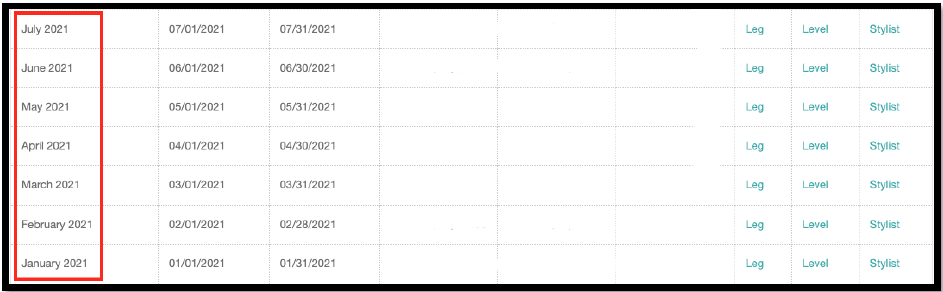
2. Find Jan 2021 – July 2021. This segment of clients we are focusing on for the Spring 2021 season.
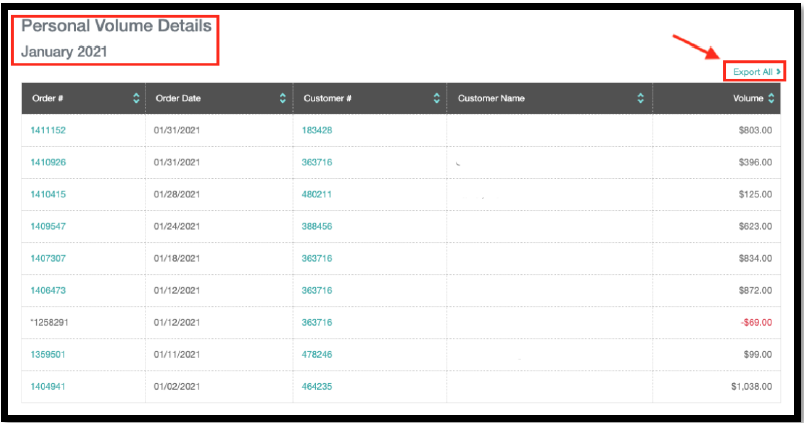
3. You will need to Click >Total PV-Q for each month Jan 2021 – July 2021 to collect all the information you want regarding CLIENTS THAT PURCHASED FROM YOU IN THE SPRING 2021 SEASON.
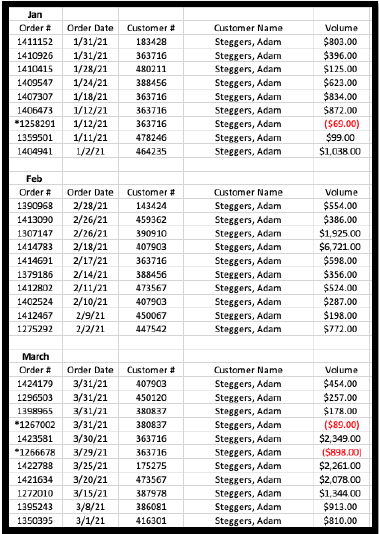
4. Month by month Jan 2021 – July 2021, either copy the client information from each page or click “Export All.” We recommend clicking “Export All” as you can build your own outreach spreadsheet for all the CLIENTS THAT PURCHASED FROM YOU IN THE SPRING 2021 SEASON.
This Green Room Reference Guide will show you how to pull a list of your clients and filter clients that HAVE UNSUBSCRIBED FROM HOME OFFICE EMAIL MARKETING.
This is an important list for you to pull monthly to ensure you have the most updated client information as you reach out. Unsubscribed Clients should be the first segment of clients you reach out to. They are only receiving communication from you. Therefore, making these Clients, a priority will be lucrative for you.
Green Room Quick Reference Guide – Volume 2.0
In creating this list, you will have a “call list” you can use as a hook to activate clients, sales, appointments, etc. Having this list gives you a great starting point each month to ensure your Unsubscribed Clients take priority and are being serviced along with generating revenue for you and your business.
Please follow the steps below to download and filter your Unsubscribed Clients in the Green Room.
Let’s dig in…
1. Login into your Green Room and click My Clients > All Clients.
2. You will see a button that says “download” click this button, and your complete list of clients will be downloaded to your downloads folder.
3. Open the spreadsheet file. NOTE: this Reference Guide shows how to filter Unsubscribed Clients via Microsoft Excel.
4. Delete any columns A-V of data that you might not need to clean up your spreadsheet. NOTE: don’t delete the “Unsubscribed” column. You will need this column of data in a moment.
5. Find the “Unsubscribed” column and click the letter above to select the entire column. Click “R” to select the “Unsubscribed” column in this example. See below.
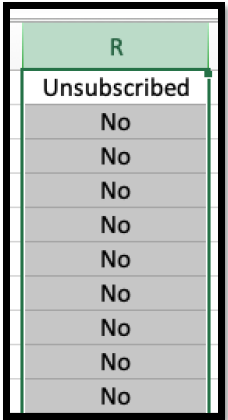
6. Once you have the entire “Unsubscribed” column selected, it’s time to filter out all the “No” clients, as these clients have currently opted into our marketing emails. You want all the clients with “Yes” listed as these clients are Unsubscribed.
7. With the column still selected, find “data” at the top of your Excel window. Click “data” then “filter.” Once you follow these steps, you will see a box appear that you can select.
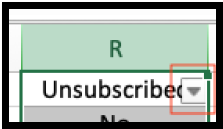
8. When you open the box selector, you will see filter options. Deselect all but the “Yes” section. You will filter all the clients who are subscribed to our email marketing (No), leaving only the Unsubscribed Clients (Yes). This is the data you are looking for.
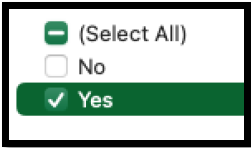
9. Make sure all the clients in your column as Unsubscribed = Yes. You now have a tailored list of only your Unsubscribed Clients.
10. You have two options from here 1. Save your spreadsheet as is to keep your Unsubscribed Clients or 2. Copy all the information from your Unsubscribed Clients, paste it into a new Excel spreadsheet, and then save.
If you are looking for detailed insight on the Virtual Assistant CRM, you have come to the right place. Please bookmark or save the link to this News Room article. Below you will find multiple volumes of our Virtual Assistant Quick Reference Guides starting post-Basecamp 2022.
The downloadable Quick Reference Guides linked below give you quick and easy “how-to’s” that you can use to expand your knowledge and usage of the Virtual Assistant. The goal here is to develop your understanding and usage of the Virtual Assistant. By doing so, you will learn more elements of the Virtual Assistant, and in turn, you will…
The goal of the Volume 1.0 Quick Reference Guide is to give you the information you need…to create a List Builder of Clients that HAVE PURCHASED SHIRTS from you from specific periods of time. You can then use that List Builder as your “call list” or outreach list for the month.
This Virtual Assistant Reference Guide will show you how to create a List Builder list of clients that HAVE UNSUBSCRIBED FROM HOME OFFICE EMAIL MARKETING.
This Virtual Assistant Reference Guide will show you how to create a List Builder list of clients that LAST PURCHASED DURING THE SPRING 2021 SEASON. We also show you another way to see CLIENTS THAT LAST PURCHASED DURING THE SPRING 2021 SEASON by sorting your client list.
No worries, you can still get the same lists the Virtual Assistant can generate in the Green Room! There might be a few more steps but the results will be the same – MORE opportunities to sell to your Clients.
This Green Room Reference Guide will show you how to pull a list of your clients and filter clients that HAVE UNSUBSCRIBED FROM HOME OFFICE EMAIL MARKETING.
This Green Room Reference Guide will show you the best way to see all the CLIENTS THAT PURCHASED FROM YOU IN THE SPRING 2021 SEASON.
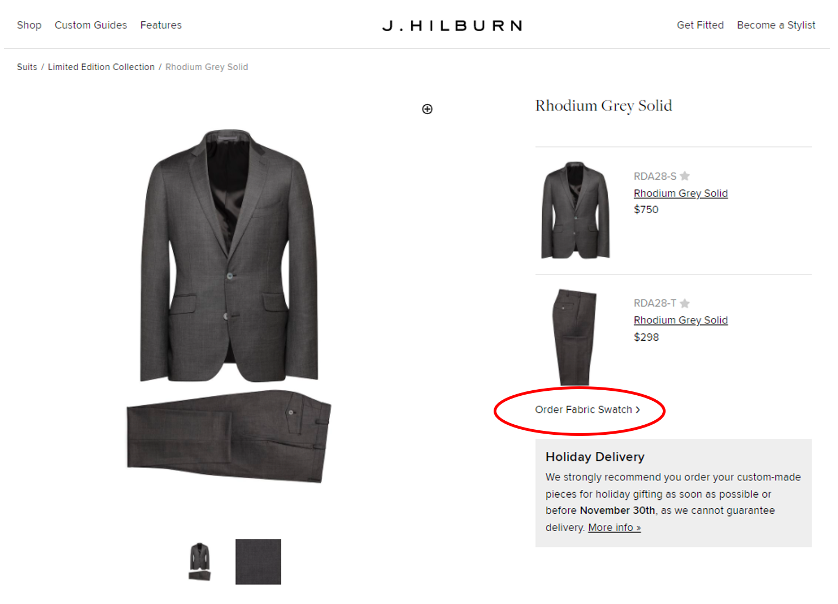
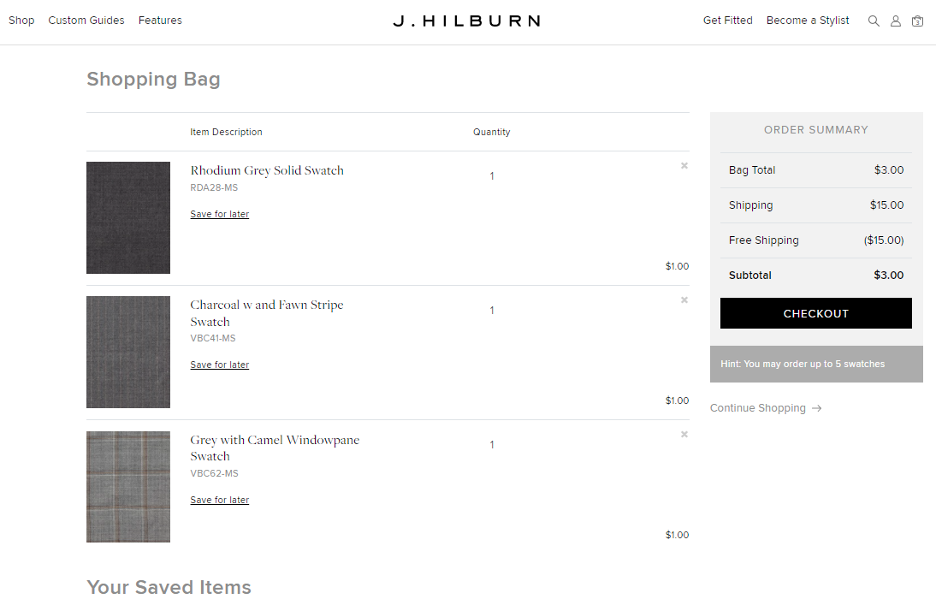
We are excited to inform you of a new Client service with the introduction of the J.Hilburn Mini Swatch Service on JHilburn.com. Our objective for this service is to assist the Client with the purchasing decision, as sometimes a Client would like to see a fabric prior to purchasing. The Client can now browse through our collection of full-price suiting and sportcoat fabrics on JHilburn.com and click “Order Fabric Swatch” to start the ordering process. The Client completes the swatch selection on the Shopping Bag screen, and the swatch order is sent directly to the Client from our Texas warehouse facility.
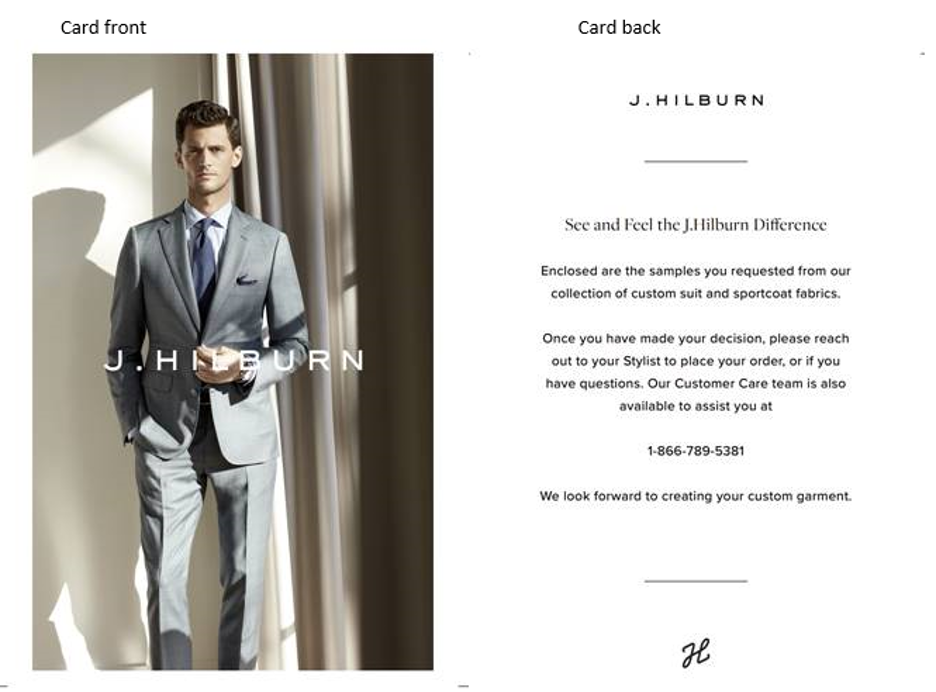
We will be enclosing a J.Hilburn logo insert card in the envelope instructing the Client to reach out to his J.Hilburn Stylist to place his order or to contact Customer Care for further assistance.
Highlights of the new Mini Fabric Swatch Service:
How does it work?
A Client can place an order for a J.Hilburn Mini Swatch by viewing our collection of full-price custom suiting and sportcoat fabrics on JHilburn.com and selecting which fabrics he would like to sample. The Client will click “Order Fabric Swatch” on the right side of the product page on .com, which will allow the Client to save the item in his Shopping Bag until the order is complete.
Once the Client order is complete on .com, the fabric swatch order is processed in our Texas warehouse. The warehouse ships the mini fabric swatch order to the client in a J.Hilburn logo envelope enclosed with a J.Hilburn insert card explaining what they received along with the mini fabric swatches for review.
Please review the following screen shots and J.Hilburn logo insert card to familiarize yourself with this new service. We strive to improve our Client purchasing experience whether he is shopping in person, virtually with a Stylist or digitally on his own, and we feel this is a great tool to help you convert the sale when a Client may be hesitant about the purchase or simply in need of a physical sample to help him decide.
January 20, 2022
Visit the IRS.gov website at:
Earnings include bonus and commission payouts, as well as the retail value of rewards such as, but not limited to trips, business materials, professional fees, registration fees, etc…
Please consult with your tax advisor for additional questions.
J.Hilburn will provide you with IRS Form 1099 for tax reporting when your earnings meet or exceed $600 for any particular year.
December of last year – November of the current year.
Example: 12/1/2020 – 11/30/2021
For more information consult with your tax advisor or follow the IRS info link: https://www.irs.gov/forms-pubs/about-form-w-9
J.Hilburn, Inc. is requesting your assistance in providing us with the information necessary to process 1099 Forms. The Internal Revenue Service requires us to receive and retain a Form W-9 from you to certify your name, address, U.S. residency status, taxpayer identification number, and backup withholding status. We only use your tax information for required governmental reporting purposes. For more information consult with your tax advisor or follow the IRS info link: https://www.irs.gov/forms-pubs/about-form-w-9