Author: admin

  • Green Room Quick Reference Guide Volume 3.0 – ARTICLE

     This Green Room Reference Guide will show you the best way to see all the CLIENTS THAT PURCHASED FROM YOU IN THE SPRING 2021 SEASON. 

    There are many ways you can see which clients purchased from you in a specific period, BUT we have chosen the fastest and most efficient way to see CLIENTS THAT PURCHASED FROM YOU IN THE SPRING 2021 SEASON. 

    Green Room Quick Reference GuideVolume 3.0 

    Please follow the steps below find and access CLIENTS THAT PURCHASED FROM YOU IN THE SPRING 2021 SEASON. 

    This example will define the SPRING 2021 SELLING SEASON From 01/01/2021 To 07/01/2021. 

    Let’s dig in… 

    1. Login to your Green Room and click My Team > Volume Reports. 

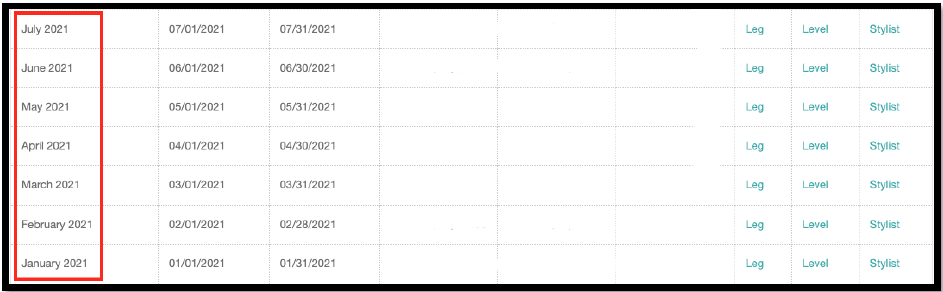
    2. Find Jan 2021 – July 2021. This segment of clients we are focusing on for the Spring 2021 season. 

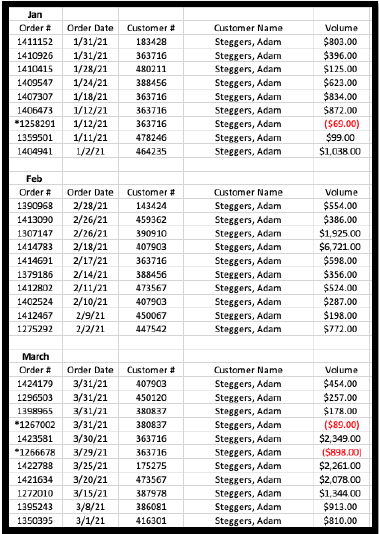
    3. You will need to Click >Total PV-Q for each month Jan 2021 – July 2021 to collect all the information you want regarding CLIENTS THAT PURCHASED FROM YOU IN THE SPRING 2021 SEASON.

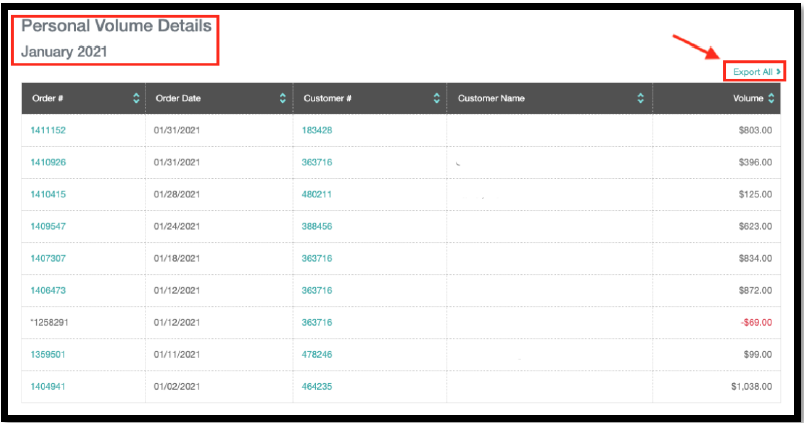
    4. Month by month Jan 2021 – July 2021, either copy the client information from each page or click “Export All.” We recommend clicking “Export All” as you can build your own outreach spreadsheet for all the CLIENTS THAT PURCHASED FROM YOU IN THE SPRING 2021 SEASON. 

  • Virtual Assistant (VA) Quick Reference Guide Volume 3.0 – ARTICLE

     This Virtual Assistant Reference Guide will show you how to create a List Builder list of clients that LAST PURCHASED DURING THE SPRING 2021 SEASON. We also show you another way to see CLIENTS THAT LAST PURCHASED DURING THE SPRING 2021 SEASON by sorting your client list. 
    STEP 1

     Please follow the steps below to create a list of your list of CLIENTS THAT LAST PURCHASED DURING THE SPRING 2021 SEASON. Let’s dig in… 

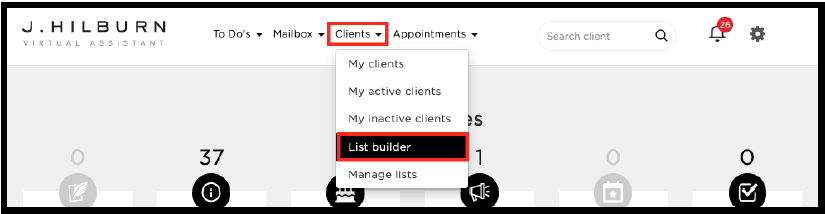
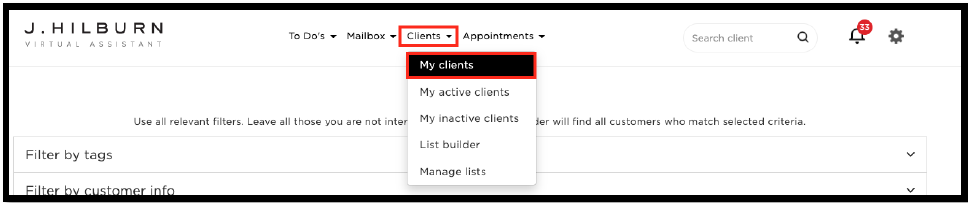
    1. Follow the image above and click Clients > List Builder. 

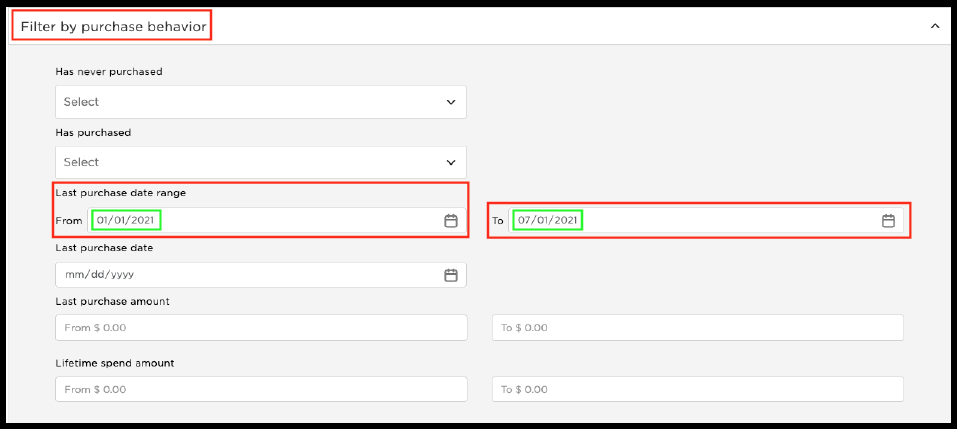
    2. Click the drop-down > Filter by purchase behavior 

    • A. You then look for the section that says, “Last purchase date range.” 
    • B. Once you find the “Last purchase date range,” you can select a LAST PURCHASE date range for the last dates your clients have purchased from you in the Spring season of 2021. We recommend you pick a broad date range. In our example, we used From 01/01/2021 To 07/01/2021 for targeted results. 

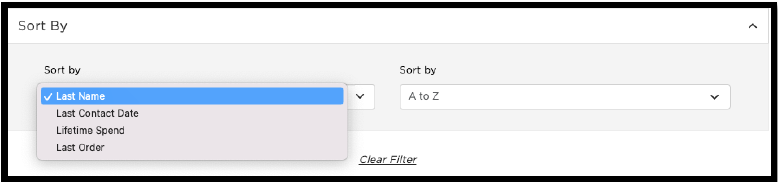
    3. To finalize your list, select the method of how you would like to sort your list. 


    Pro Tip: Sort your list to have the highest potential buyers at the top. In most cases, you will use this list as your client outreach list, in order, top to bottom. What data is more important for you? See below.
     

    4. Select your “Sort by” option by clicking on the left and right column drop-down selections. You can see these selections pictured below.  

    5. You are now done and ready to view your list and begin your client outreach to high potential buyers from the Spring 2021 season. After you select your sort by method, click “Confirm and Search.” Remember, you can use the Virtual Assistant (call, email, text), Style Boards, etc., in reaching out to your clients. 

    STEP 5

    6. Review your list and make sure you are happy with the client data and how it is presented, i.e., sort by. 

    7. Try it for yourself and create your list of targeted Clients that LAST PURCHASED FROM YOU IN THE SPRING 2021 SEASON. After reviewing your list, don’t forget to Save Your List and Name Your List to access whenever you would like. 

    Let’s now shift gears and use the Virtual Assistant to see a less targeted list of Clients who LAST PURCHASED FROM YOU IN SPRING 2021. 

    1. Start fresh and go to the top of your Virtual Assistant page and click > Clients > My Clients. 

    2. You now have full access to your entire client base. Again, this is a broader list of your Spring 2021 Clients. 

    3. You will see at the top of the page several drop down’s just like you have in the List Builder section. Click > Sort by > Last Order > Most Recent. 

    4. Once you have made the selections above, click “Confirm and search.”

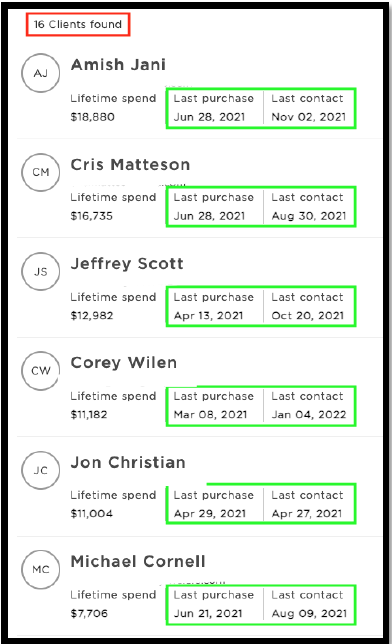
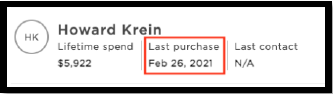
    5. Remember, this is a list of all your clients sorted by “Last Order” in order of “Most Recent” order dates—scroll and page through to find a client with a purchase date in January or February 2021. You can now work with this client and outreach to all the clients who last purchased in the Spring season of 2021.

  • Green Room Quick Reference Guide: Finding Unsubscribed Clients

     This Green Room Reference Guide will show you how to pull a list of your clients and filter clients that HAVE UNSUBSCRIBED FROM HOME OFFICE EMAIL MARKETING. 

    This is an important list for you to pull monthly to ensure you have the most updated client information as you reach out. Unsubscribed Clients should be the first segment of clients you reach out to. They are only receiving communication from you. Therefore, making these Clients, a priority will be lucrative for you.

    Green Room Quick Reference GuideVolume 2.0 

     In creating this list, you will have a “call list” you can use as a hook to activate clients, sales, appointments, etc. Having this list gives you a great starting point each month to ensure your Unsubscribed Clients take priority and are being serviced along with generating revenue for you and your business. 

     Please follow the steps below to download and filter your Unsubscribed Clients in the Green Room. 

    Let’s dig in… 

    1. Login into your Green Room and click My Clients > All Clients. 

    2. You will see a button that says “download” click this button, and your complete list of clients will be downloaded to your downloads folder. 

    3. Open the spreadsheet file. NOTE: this Reference Guide shows how to filter Unsubscribed Clients via Microsoft Excel. 

    4. Delete any columns A-V of data that you might not need to clean up your spreadsheet. NOTE: don’t delete the “Unsubscribed” column. You will need this column of data in a moment. 

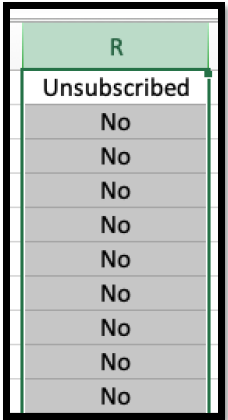
    5. Find the “Unsubscribed” column and click the letter above to select the entire column. Click “R” to select the “Unsubscribed” column in this example. See below. 

    Unsubscribed

    6. Once you have the entire “Unsubscribed” column selected, it’s time to filter out all the “No” clients, as these clients have currently opted into our marketing emails. You want all the clients with “Yes” listed as these clients are Unsubscribed. 

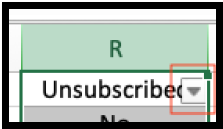
    7. With the column still selected, find “data” at the top of your Excel window. Click “data” then “filter.” Once you follow these steps, you will see a box appear that you can select.

    Filter

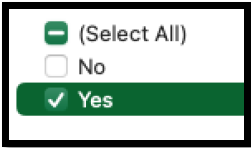
    8. When you open the box selector, you will see filter options. Deselect all but the “Yes” section. You will filter all the clients who are subscribed to our email marketing (No), leaving only the Unsubscribed Clients (Yes). This is the data you are looking for. 

    Select Yes

    9. Make sure all the clients in your column as Unsubscribed = Yes. You now have a tailored list of only your Unsubscribed Clients. 

    10. You have two options from here 1. Save your spreadsheet as is to keep your Unsubscribed Clients or 2. Copy all the information from your Unsubscribed Clients, paste it into a new Excel spreadsheet, and then save. 

  • Virtual Assistant (VA) Quick Reference Guide

    If you are looking for detailed insight on the Virtual Assistant CRM, you have come to the right place. Please bookmark or save the link to this News Room article. Below you will find multiple volumes of our Virtual Assistant Quick Reference Guides starting post-Basecamp 2022.

    The downloadable Quick Reference Guides linked below give you quick and easy “how-to’s” that you can use to expand your knowledge and usage of the Virtual Assistant. The goal here is to develop your understanding and usage of the Virtual Assistant. By doing so, you will learn more elements of the Virtual Assistant, and in turn, you will…

    • Increase sales
    • Deepen Client relationships
    • Be smarter about your clients
    • Be proactive with Client outreach

    Do Not Have Access to the Virtual Assistant?

    No worries, you can still get the same lists the Virtual Assistant can generate in the Green Room! There might be a few more steps but the results will be the same – MORE opportunities to sell to your Clients. 

  • Virtual Assistant (VA) Quick Reference Guide Volume 1.0 – ARTICLE

    The goal of Volume 1.0 Quick Reference Guide is to give you the information you need…to create a List Builder of Clients that HAVE PURCHASED SHIRTS from you from specific periods of time. You can then use that List Builder as your “call list” or outreach list for the month.

    Virtual Assistant Quick Reference GuideVolume 1.0 

    This Virtual Assistant Reference Guide will show you how to create a List Builder list of clients that HAVE PURCHASED SHIRTS from you in specific time periods. 


    STEP 1

     In creating this list, you will have a “call list” you can use as a hook to activate clients, sales, and appointments, starting with shirts again, as the hook to start a conversation with your clients. 

    Let’s dig in… 

    1. Follow the image above and click Clients > List Builder. 

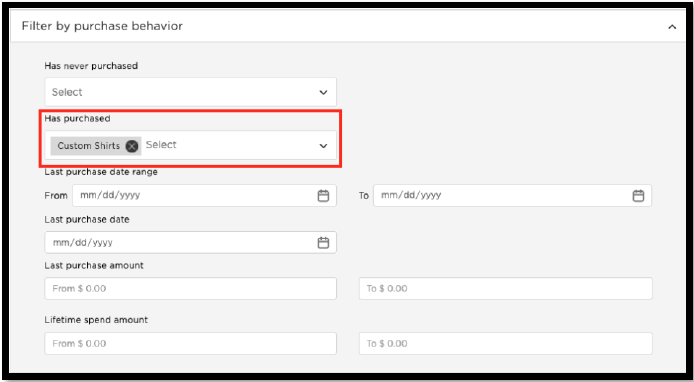
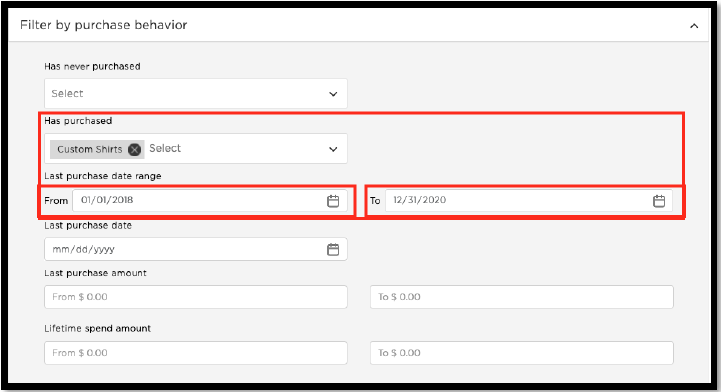
    2. Click the drop-down > Filter by Purchase Behavior > Has Purchased, select Custom Shirts from the garment categories, and press enter to lock in your selection. 

    STEP 2

    3. Next, it’s time to select the date range of your list of clients that HAVE PURCHASED SHIRTS. Start with a broad list first. In the Last Purchase Date Range, enter From 01/01/2018 – To 12/31/2020.

    STEP 3

    4. To finalize your list, select the method of how you would like to sort your list. 

    STEP 4

    5. You are now done and ready to view your list and begin your client outreach using shirts as a hook. After you select your sort method, click “Confirm and Search.” Remember, you can use the Virtual Assistant, Shirt Configurator, Style Boards 

    STEP 5